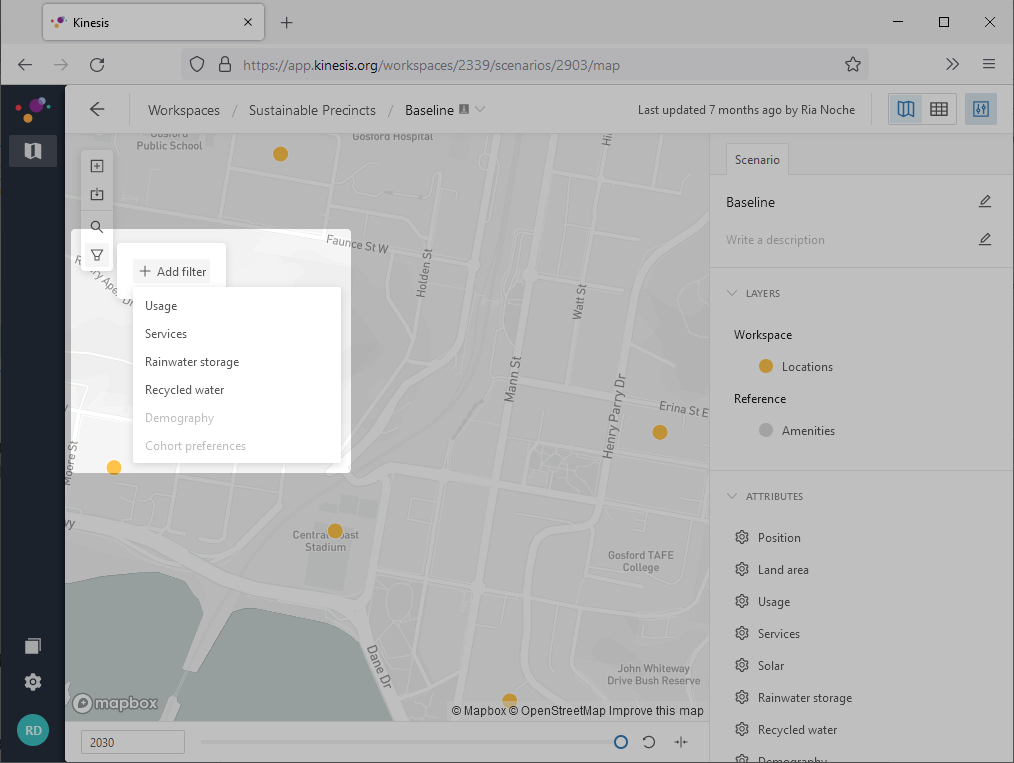
Maps are a key tool in Kinesis — from managing locations, building scenarios, to visualising data. Here's how you can navigate around maps.
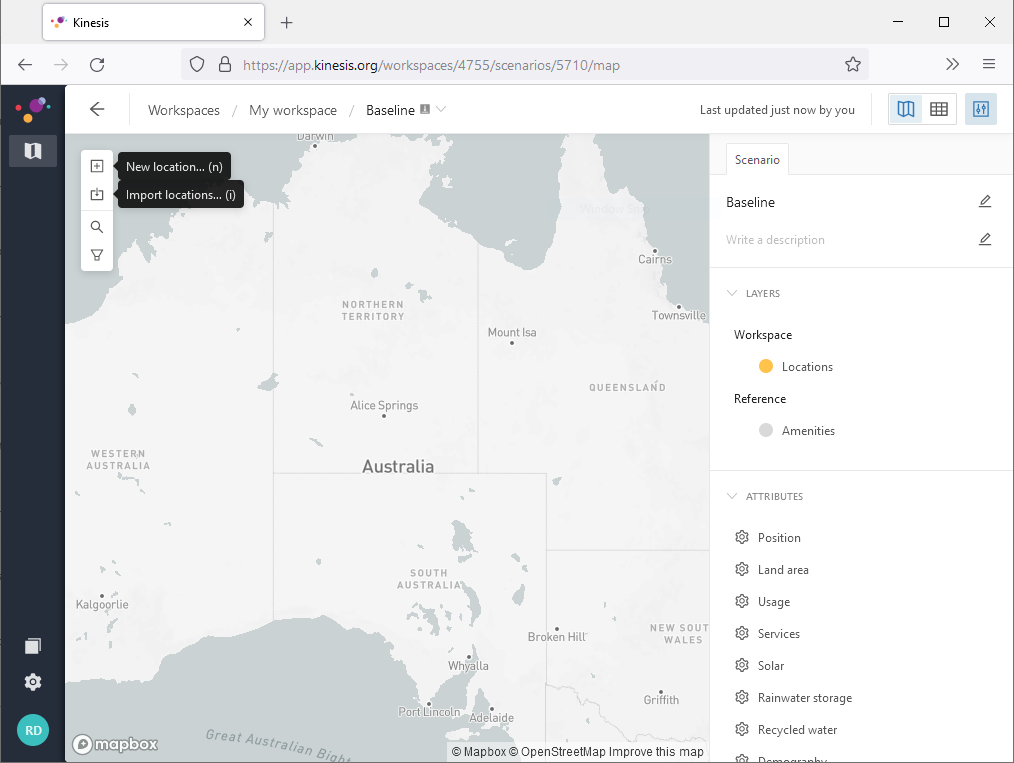
Interacting with maps
Zoom — change the scale of the map
- Scroll using your mouse
- Pinch using your trackpad or touchscreen
- Double click using your mouse or trackpad to zoom in
Pan/Drag — moving the map while keeping it at the same scale
- Click and hold your mouse or trackpad, then drag the map by moving your mouse or finger
- For touchscreen devices, use one finger to move the map
Tilt or rotate — change the view angle or orientation of the map
- Hold down
Control/commandon your keyboard, click and hold your mouse or trackpad, then tilt or rotate by moving your mouse or finger
Select — select items on the map like locations or data points
- Click on the item to select it
Navigating to an area on the map
Here are some suggested steps to take when you want to navigate to a certain area on the map, for example to add a new location or change what's visible.
- Zoom out until you recognise where you are
- Pan the map until the desired area is in the centre
- Zoom in or out to the desired scale
Searching for a specific location
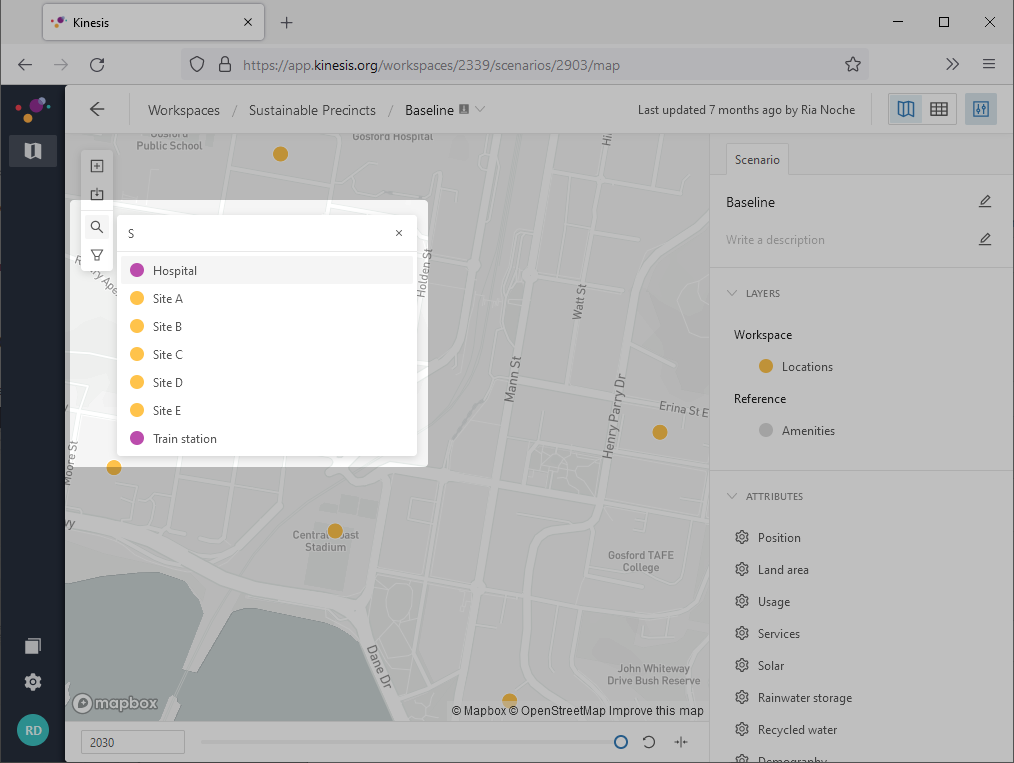
To search and select for a specific location, you can use Search on the map controls.
To search for locations based on their attributes, you can use Filter on the map controls.